An access point is the place a credential gets used. A door, a gate, a barrier, a turnstile, a cylinder. Everything else hangs off it: the space it sits in, the credentials that open it, the people who hold them.
Created by hand. You add it on the Access Points page.
Imported. A locksmith XML file loaded under Integrations creates the doors along with the locking plan.
Synced. A connected locking system reports its own doors and portierX keeps them in step.
Which of the three decides what you may change and whether you may delete the record at all. The Source card on the detail page tells you.
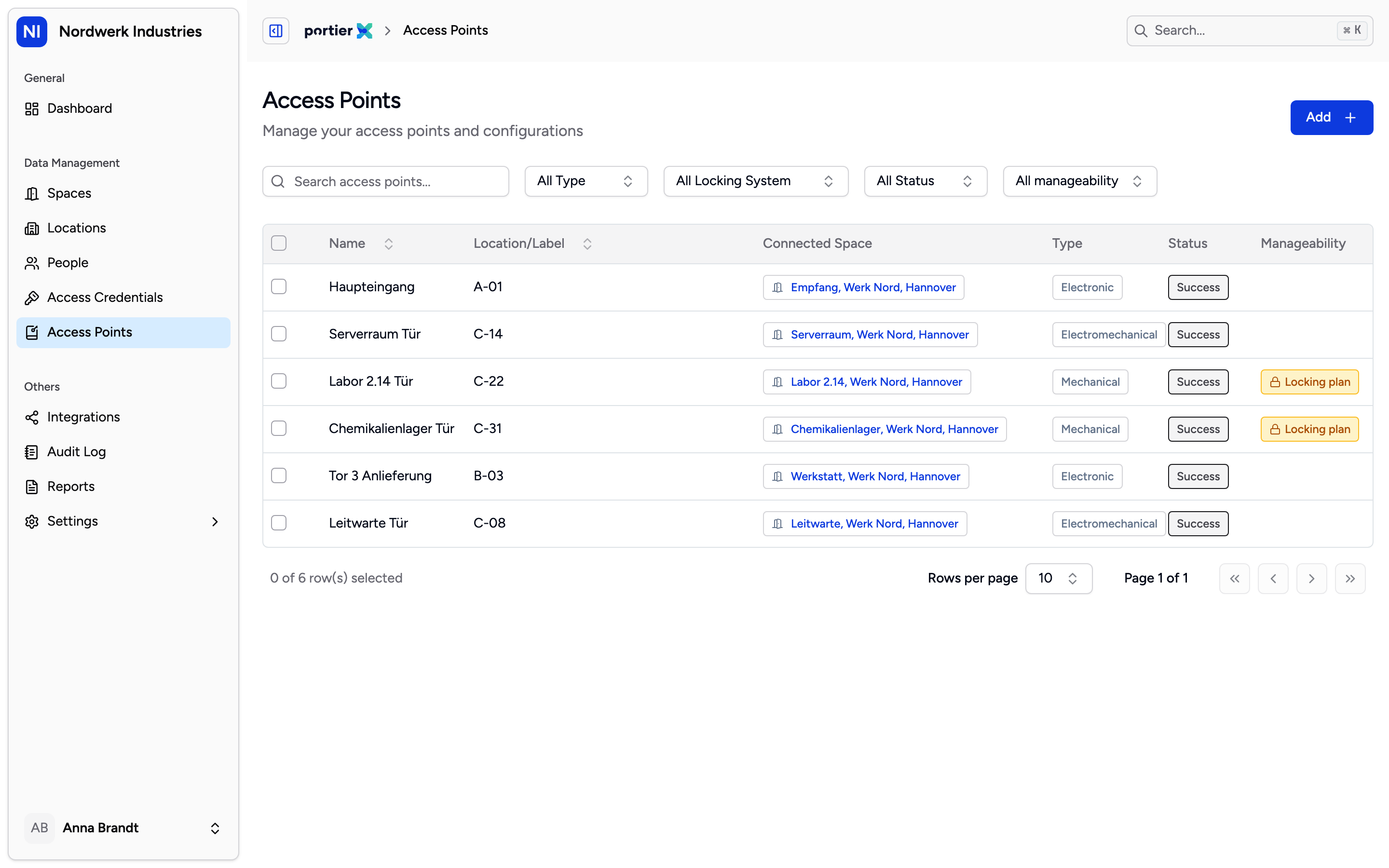
The list is where the day starts. The filter row above it turns a few hundred doors into the handful you are working on.
On Access Points, choose Add. Access Point Name is the only required field. Location/Label says where the door sits. Linked Locking System can only be set here, at creation, and Linked Credentials attaches existing keys straight away.
There is no space field on the form. An access point you create by hand always starts with no space, and linking it is a separate step.
In the list, the Connected Space column shows Add Space on any row without one. On the detail page, the Connected Space card offers Assign space. Both ask for a building, then a space. Once a space is set the card offers Change, and you can unlink from the same place. Read the warning when you do: removing the space revokes everyone's access to that access point.
The link matters because portierX reasons through spaces, not through individual doors. When you give someone access, the recommendation is built from the access points sitting in the space they need. A door with no space is not missing from the list. It is missing from the answer.
Finding the forgotten ones takes one button. Next to the filters sits Missing Space with a count. Click it and the list shows exactly the access points nobody linked. No button means the count is zero.
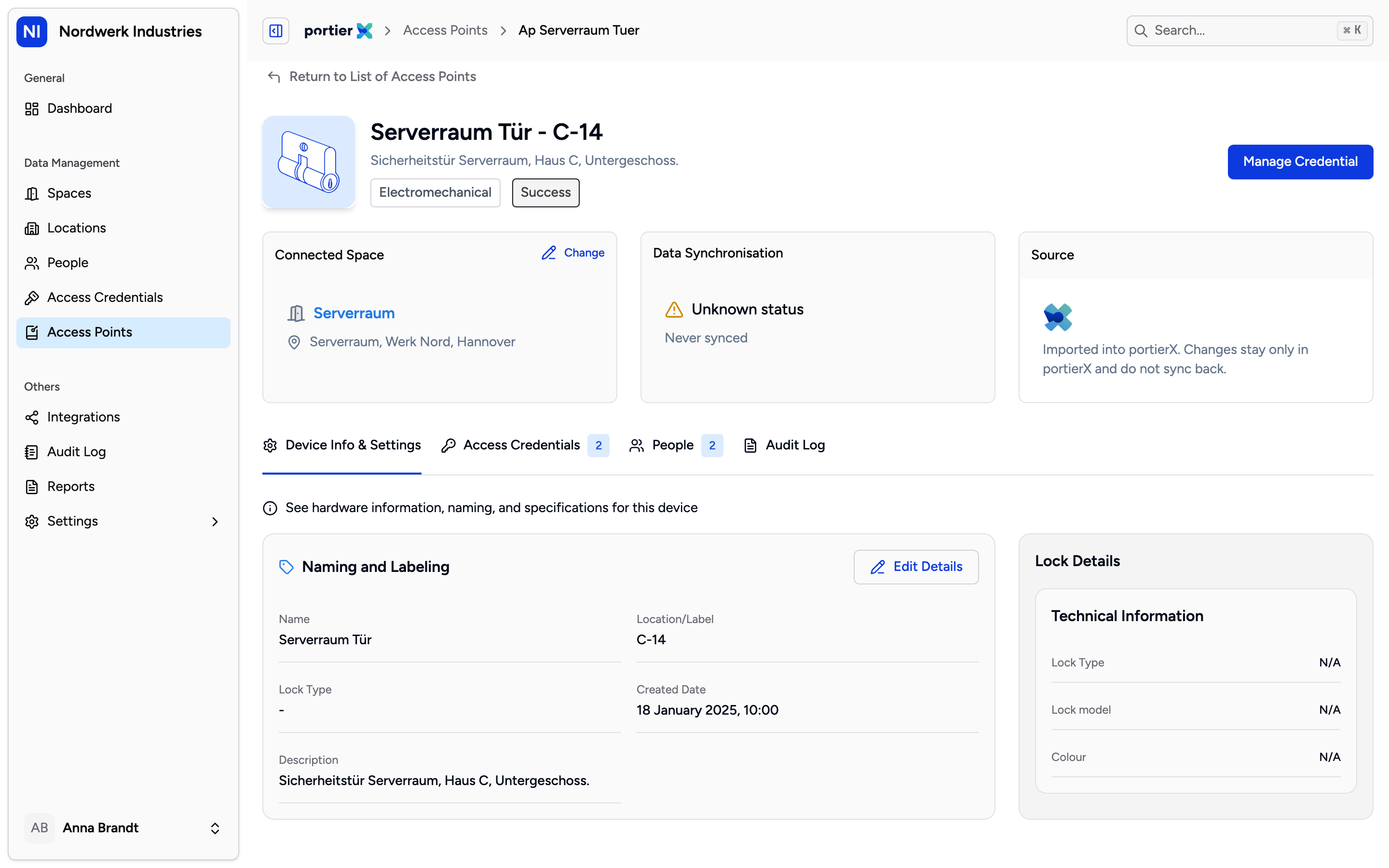
The three cards answer three different questions: where the door sits, whether portierX and the locking system still agree, and where the record came from.
Clicking a row opens the door's own page. Three cards sit across the top. Connected Space is the space and its location. Data Synchronisation shows the last sync and its result, and Sync Now appears only on doors that came from a connected locking system. Source names where the record came from.
Four tabs sit below.
Device Info & Settings: naming, lock details, and what the manufacturer sent through. Name, label and description can be edited in place only on access points you created by hand. The manufacturer's own data is marked Read-only.
Access Credentials: every credential that opens this door.
People: everyone holding one of those credentials.
Audit Log: every change here, with who made it and when.
Imported access points cannot be deleted. Editing works the same way: an imported record's own fields are fixed, though its space link stays changeable.
Deleting is also refused if it would leave a linked credential covering no access points at all. Every credential has to open at least one door. Link that credential to another door first, then come back.
portierX does not warn you first. You click delete, and the refusal comes back as an error message.
The locking system cannot be changed once the record exists.
The selection bar offers Edit Details and Change Status. Neither does anything yet. Sync Selection does.
Sync is for connected electronic systems only. A mechanical master key system has no live door state to read, and a selection spanning two systems is refused.
