portierX needs to know where your doors are before it can manage who goes through them. That is what locations, buildings and spaces are for, and they are the first thing to set up.
Level | What it holds |
|---|---|
Location | A site. One address, one campus, one plant. |
Building | A structure on that site. It belongs to exactly one location. |
Space | An area people need to reach. A room, a floor, a wing. |
Name them the way your colleagues talk about them. Space names are what everyone reads later when they grant access.
Locations opens on an All tab, which shows the buildings from every location. Behind it sits one tab per location, and Add Location at the end of the row. Only Name is required. Address, ZIP, Country, City and Tags are optional. To rename one, open the small menu on its tab and choose Edit.
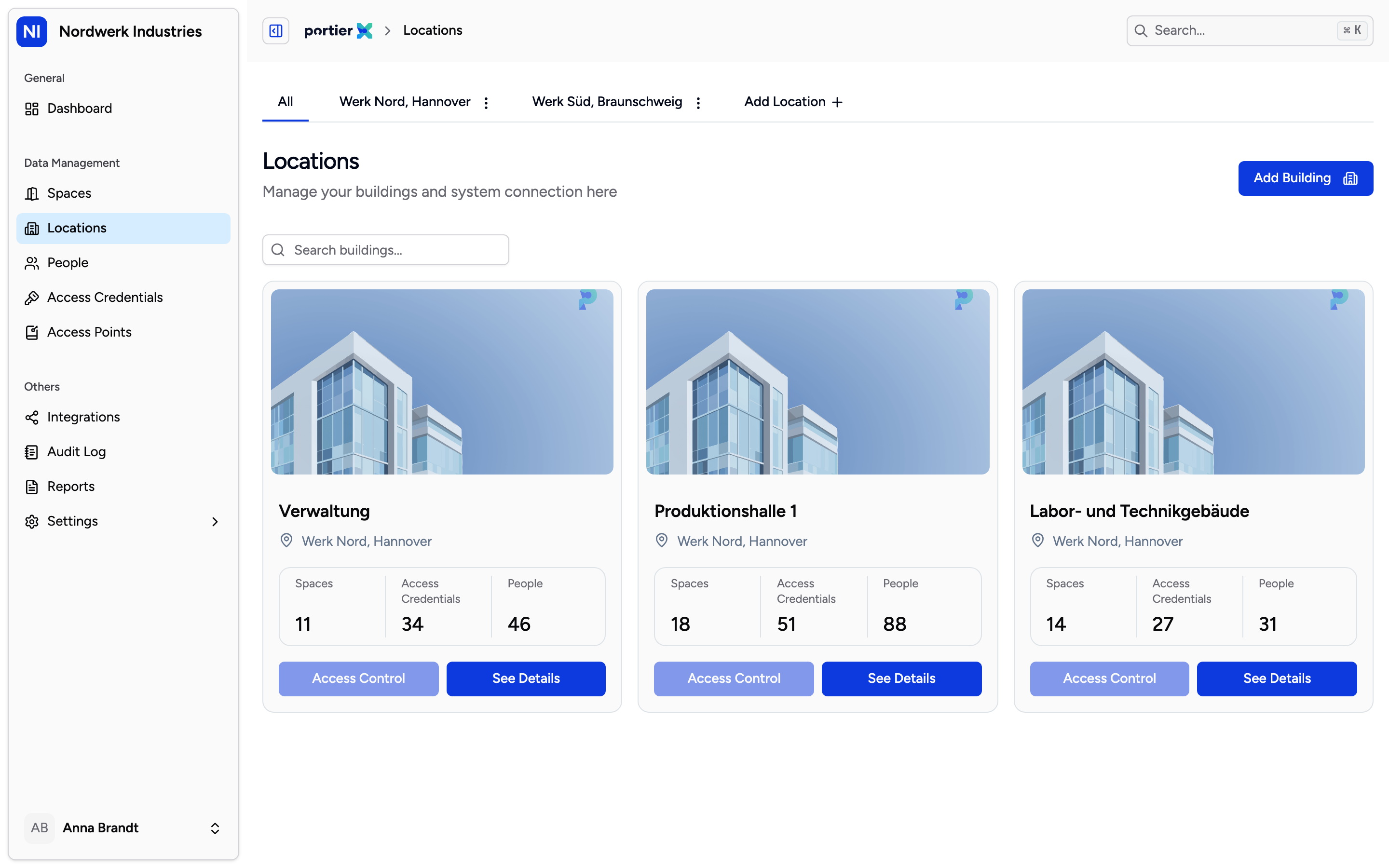
On a location tab the cards are that location's buildings only. An empty grid there usually means the wrong tab, not missing buildings.
Add Building needs two things, a Building Name and a location. The location comes from the tab you were standing on, and Change Location picks a different one. On the All tab nothing is prefilled, the button reads Select Location, and Add Building stays greyed out until you pick one.
Each building appears as a card. See Details opens it, with Space List and Credential List tabs and buttons for Edit Building Data and Locking System Config.
Add Space on the Spaces page. A Space Name and a location are required. Building is optional, but leaving it empty hangs the space off the site with nothing above it, so pick one.
When you save, portierX tells you the space is empty and offers Link Access Points or Skip for Now.
Take the first one. A space with no access points is a name and nothing else. There is no door behind it to grant, and it will not appear in the list you go looking for it in.
The Spaces list hides spaces with no access points linked. That is the default, and nothing on screen tells you.
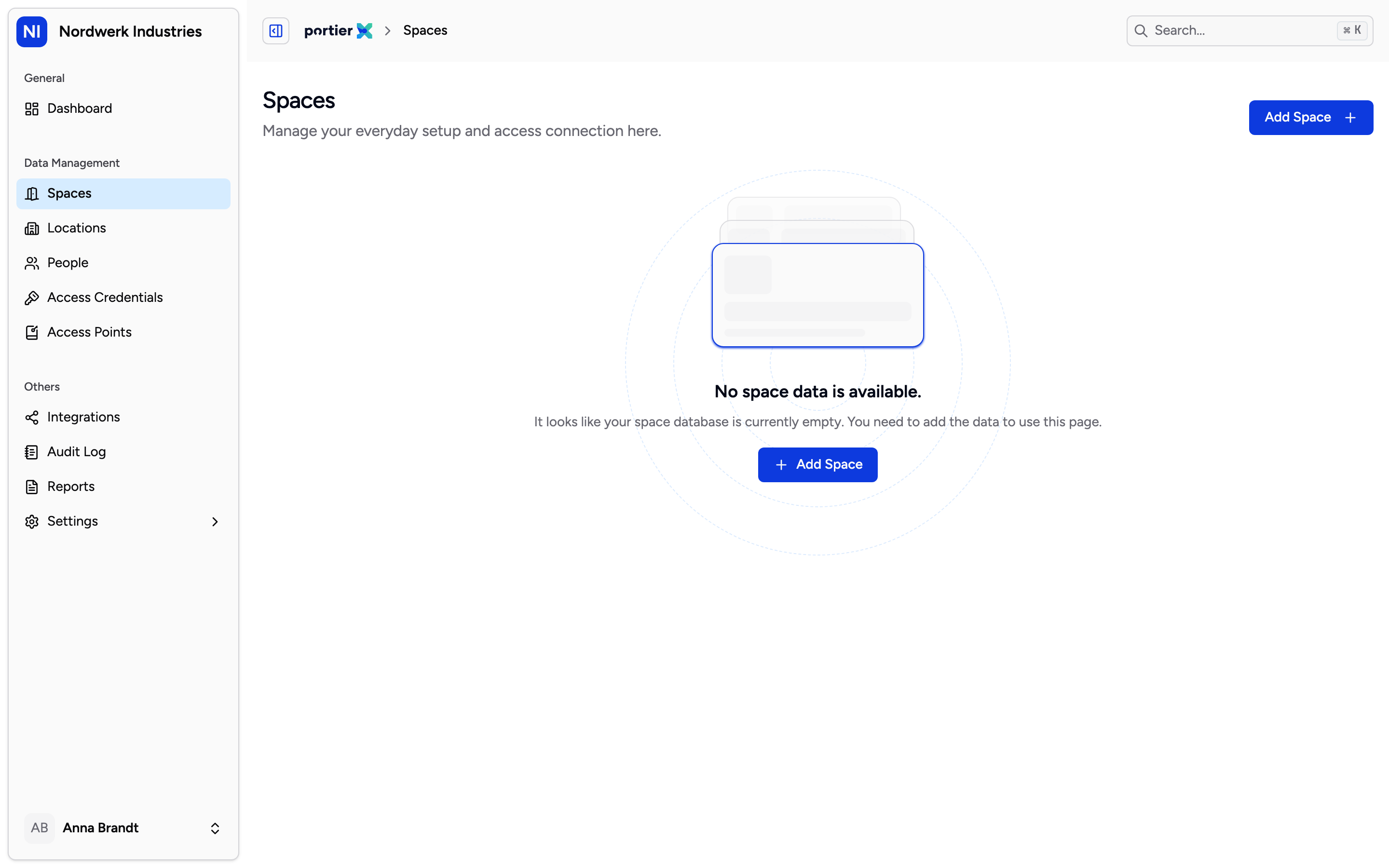
Tick the box and the spaces with no access points join the list. Leave it unticked and search will not surface them either, because the filter runs first.
Tick Include empty spaces and they appear. They show on a building's Space List tab regardless, which does not filter on access points.
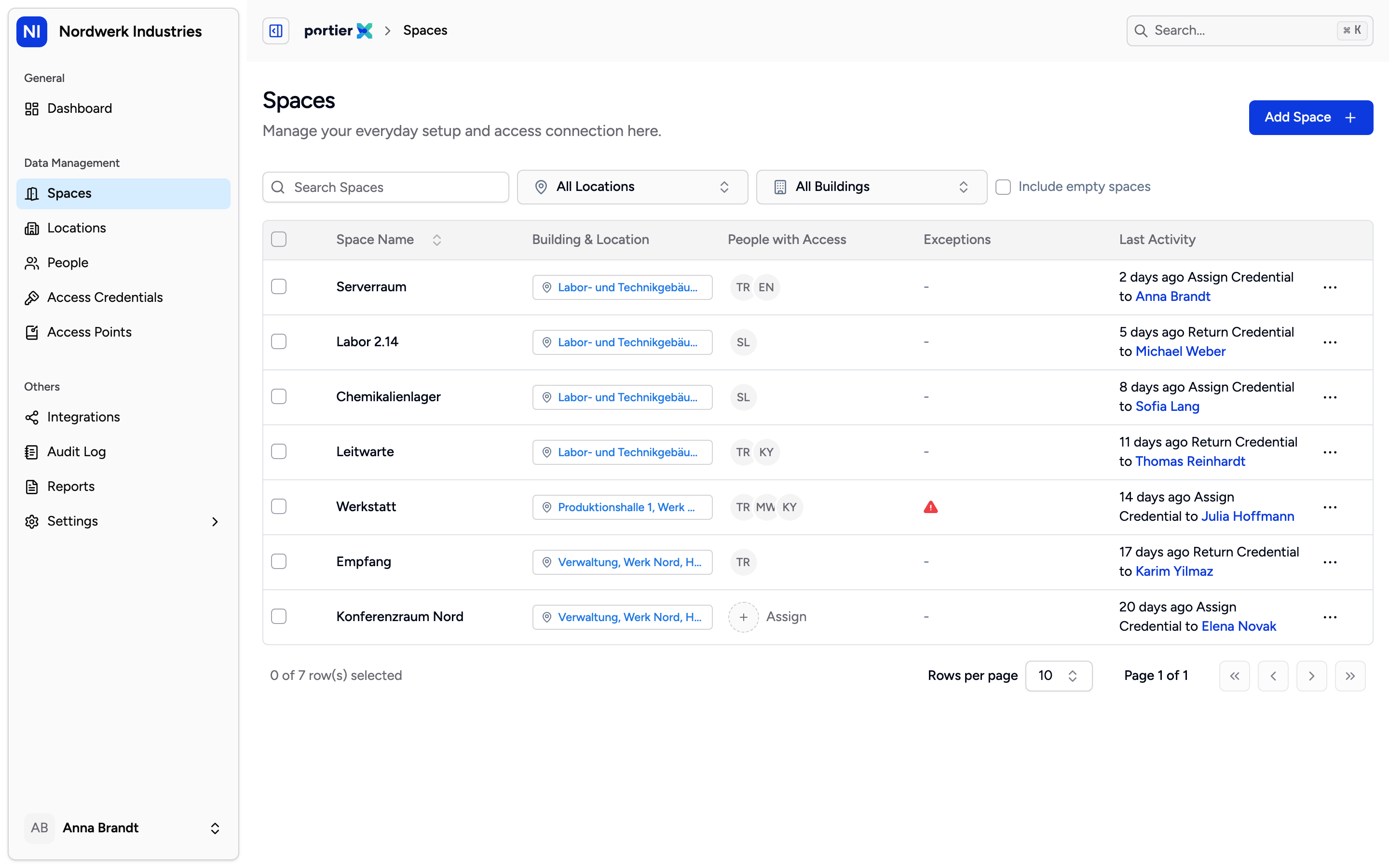
Building and location share one column. If only the site is shown, the space sits under no building.
Search matches the space name, its area and its department. All Locations and All Buildings narrow the list, and the building filter only offers buildings from the location you picked. Sorting works on Space Name only.
Click any row to open it. Five tabs.
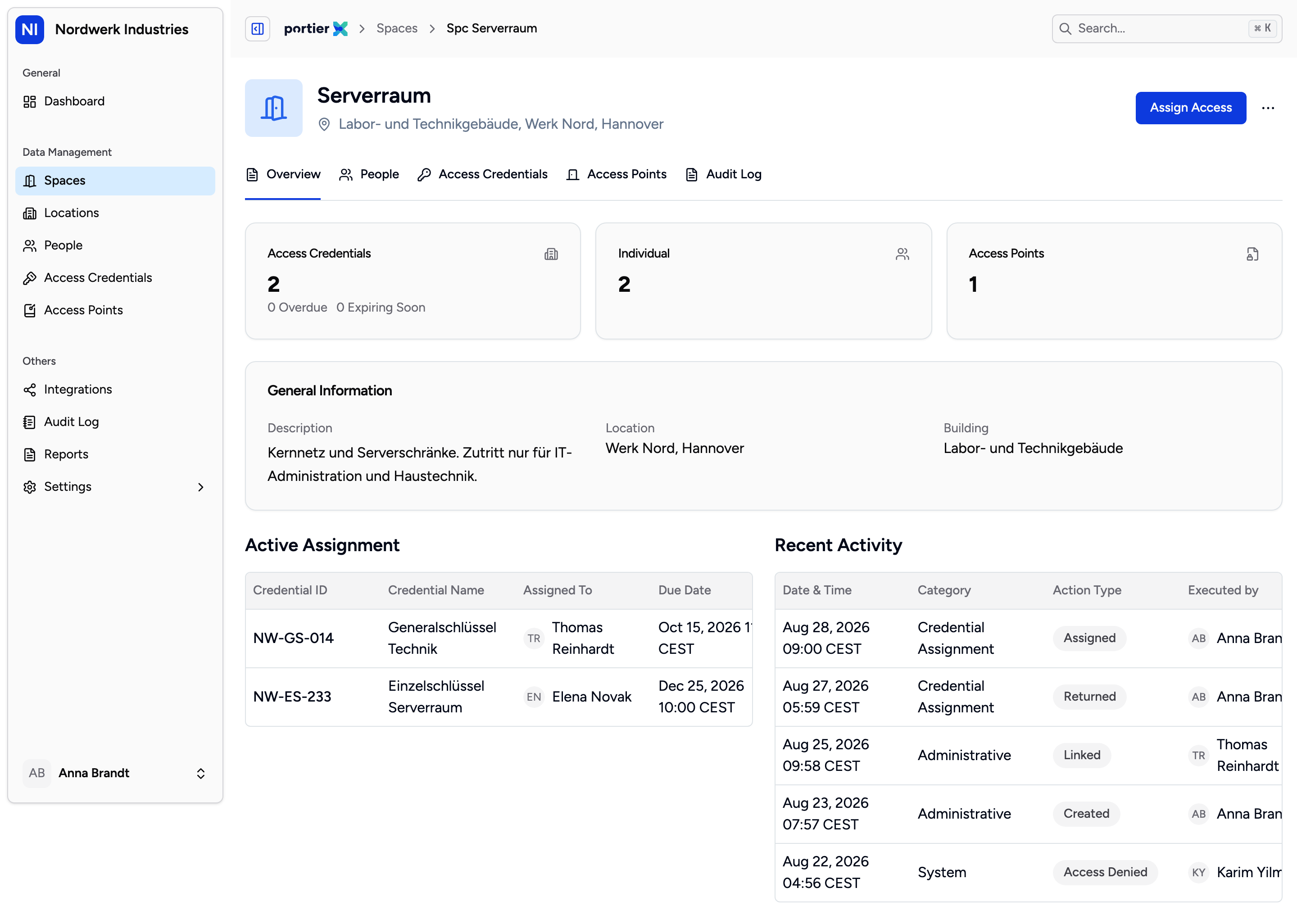
The overview gathers what hangs off this space. Every tab goes deeper from here without leaving it.
Overview: the counts, the details you typed in, active assignments, recent activity.
People: everyone who currently holds access here.
Access Credentials: the keys, cards and PINs that reach it.
Access Points: the doors linked to it. The button top right reads Link Access Point until a door is linked, Manage Access Points after that.
Audit Log: the changes portierX recorded. This tab is not yet narrowed to the one space, so what you see is the whole organisation's record. For the history of a particular door, use the tab of the same name on the access point.
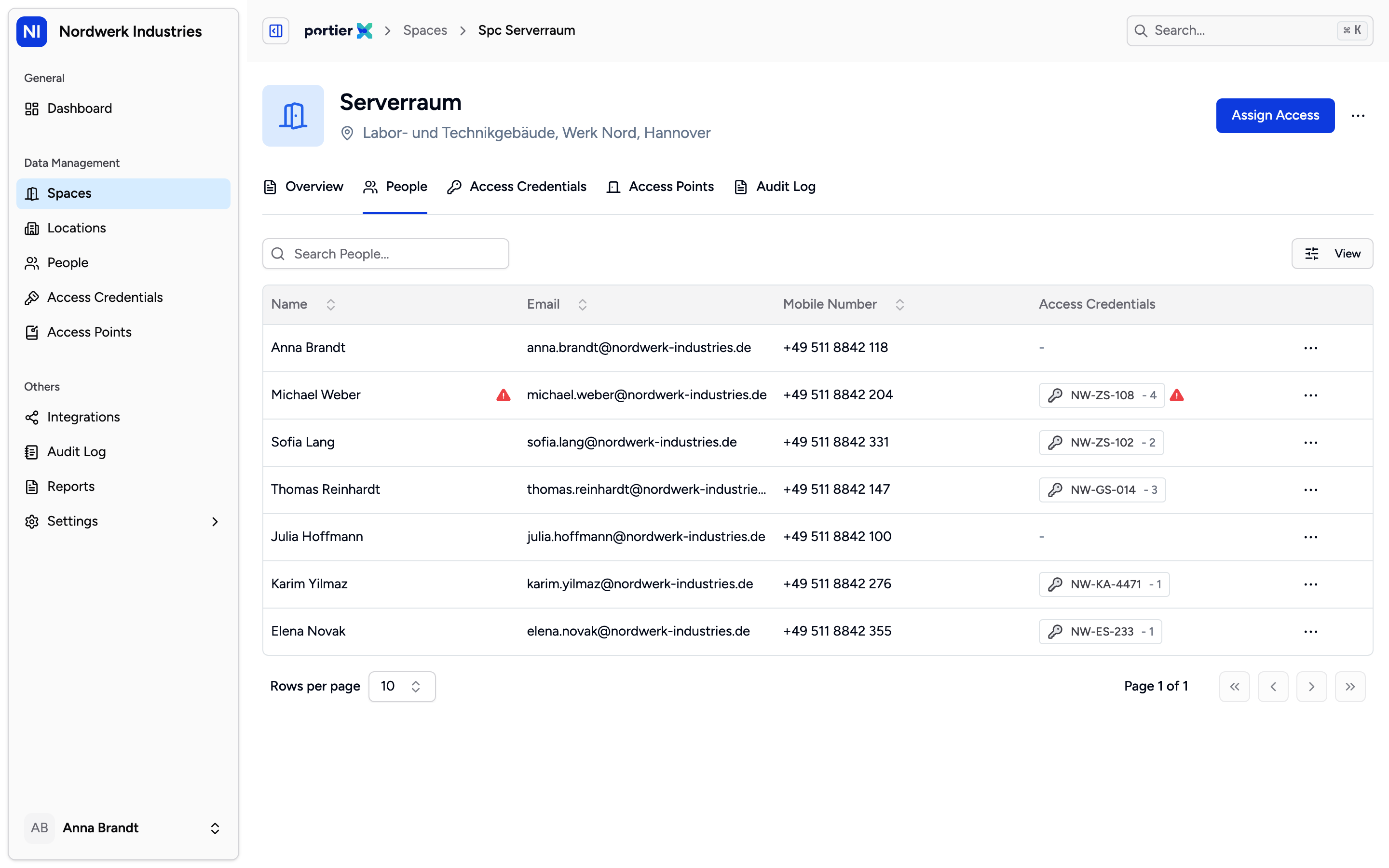
The People tab answers the question people ask most, who can get in here right now.
A location cannot be deleted. The tab menu offers Delete, but the action fails. Rename it instead.
A building cannot be deleted either. There is no delete control in the grid or on the building page.
A space with access points still linked cannot be deleted. Remove them on the Access Points tab first.
Building photos do not save. Add Photo and Change Image show a preview that disappears on reload.
No floor plans. Connect CAD reports that the feature is not available yet.
