Area managers record which locations, buildings or spaces a user manages. The Organisation Admin keeps the list under Settings, Area Managers.
Also called: site manager, estate manager. The screen says area manager.
A space is a place with doors. An access area is the part of the estate a user manages: one or more locations, buildings or spaces. The same space can sit in several users' areas.
The list carries one row per user with Name, Role, Access Detail and Actions. Access Detail counts the locations, buildings and spaces assigned. The search box and the filters Location, Building and Space narrow the list. Clicking a row opens Manager Details.
Open Settings, then Area Managers, and click Add. The Add Access drawer opens.
Under Select User, pick the user. The picker lists user accounts with a login, with role and email address, not people from the people directory.
Under Add Access Area, pick the Access Level: location, building or space.
Under Name, pick the places, through Select locations, Select buildings or Select spaces. Once places are picked, the row's level is fixed.
Click Add Access if the same user is to manage places on another level as well, and repeat the choice.
Click Save Access. Save & Add Another saves and keeps the drawer open for the next user.
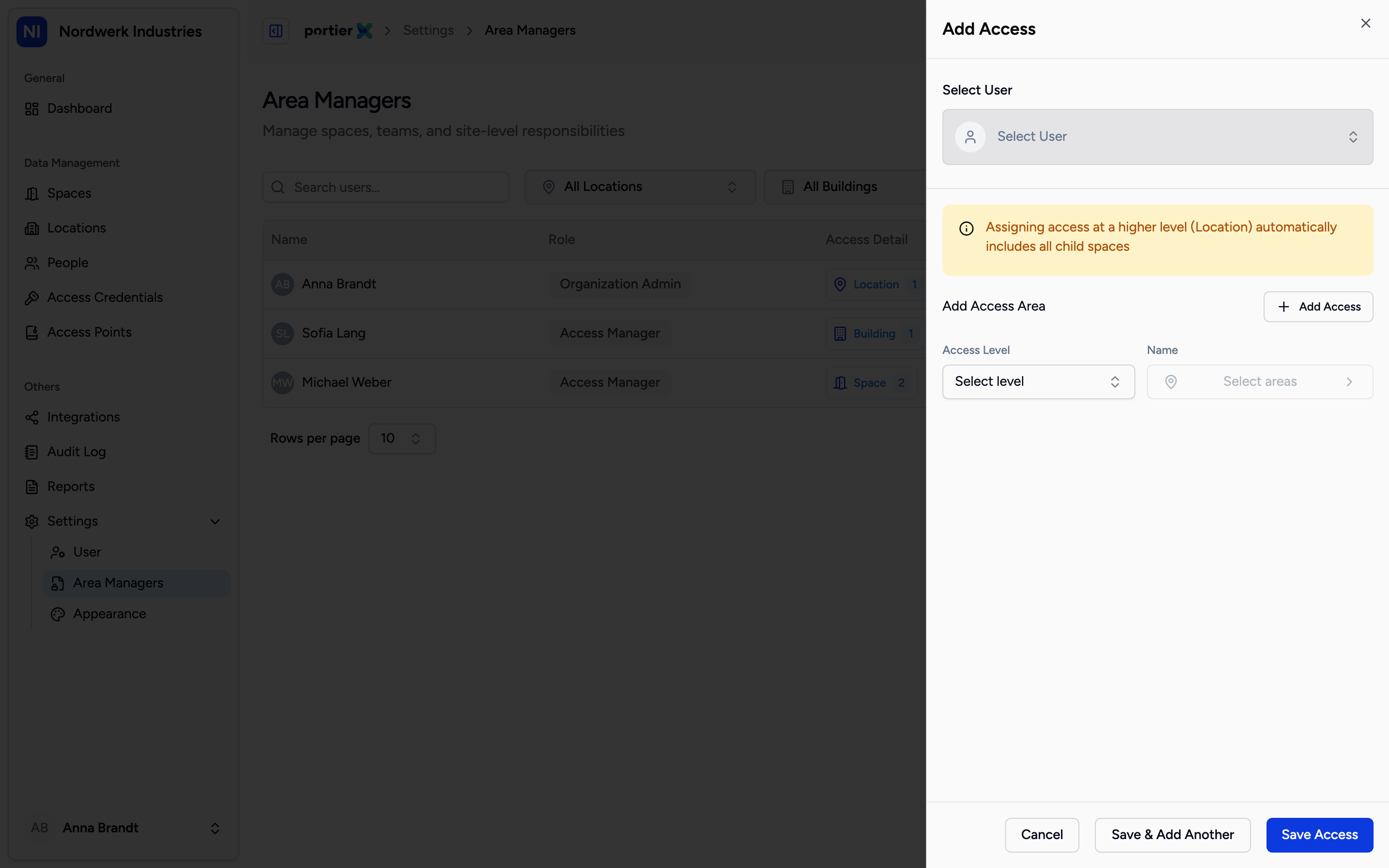
Pick the user, pick the level, then the places. The notice above the area says that a location includes every space under it.
A user assigned a location manages everything under it: every building and every space, including those created later. An assigned building includes its spaces. If somebody is to manage a location except the server room, the location level will not do it. Pick the buildings or spaces individually instead.
Manager Details shows the result: the user with role, the counts of Location, Building and Space, and under Access Areas one tab per location with its buildings and their spaces. Search Spaces finds a space in it.
From the list's row menu, open the assignment with Edit. The Edit Access drawer shows the same fields. What you save with Save Access replaces the user's previous assignment entirely.
Remove the assignment with Delete in the same row menu. The question names the user's name and email address; Yes, I'm sure confirms. All of this user's areas are removed. The user account stays.
An area manager is a user listed under Settings as managing areas. The responsible person is named on the page of the location, building or space itself, under Responsibility, in the Responsible and Deputies dialog. They answer for that place. Approval requests for rooms with no Approver go to them, and a Deputy stands in for them. Both can be set for the same person. They are two separate entries.
The user sits in the list with the counts of their areas, and Manager Details shows them resolved down to the space.
Assigning and removing are written to the Audit Log.
What the user sees and may do in portierX stays as it is. Their role decides that.
The Area Managers page and assigning need the Organisation Admin role.
An area manager is a user account. A person without a login gets no area.
There is one assignment per user. Editing replaces it, deleting removes it entirely.
An assigned location includes all its buildings and spaces, a building all its spaces, including those created later.
An access area changes nothing in what the user sees or may do in portierX. The role decides that.
