If your installation runs on ASSA ABLOY eCLIQ, portierX can connect to it. The connection goes to the CLIQ Web Manager.
Three things up front.
This connection is not on production yet; it is available on the test environment.
The whole interface for this connection reads in English, in every language. The labels below are given as they appear on your screen.
Setting it up is explicitly an IT job. You need a client certificate and its password. Anyone without access to the CLIQ Web Manager's certificates stops here, and that is not a shortcoming of the instructions.
Locking System Name, yours to choose. The field suggests the name of a master key system as an example.
CLIQ Web Manager base URL, the address of your CWM. The field shows an example address with a port and a path; yours will look similar.
Web Service client certificate (.p12), the client certificate. This is the unusual part: you do not upload a file. You paste the certificate's contents into a field as base64-encoded text.
Web Service client certificate password, the password for that certificate.
CWM server CA certificate is optional, in PEM format. Left empty, portierX works without it.
The first four are required.
Open Integrations and the ASSA ABLOY eCLIQ tile.
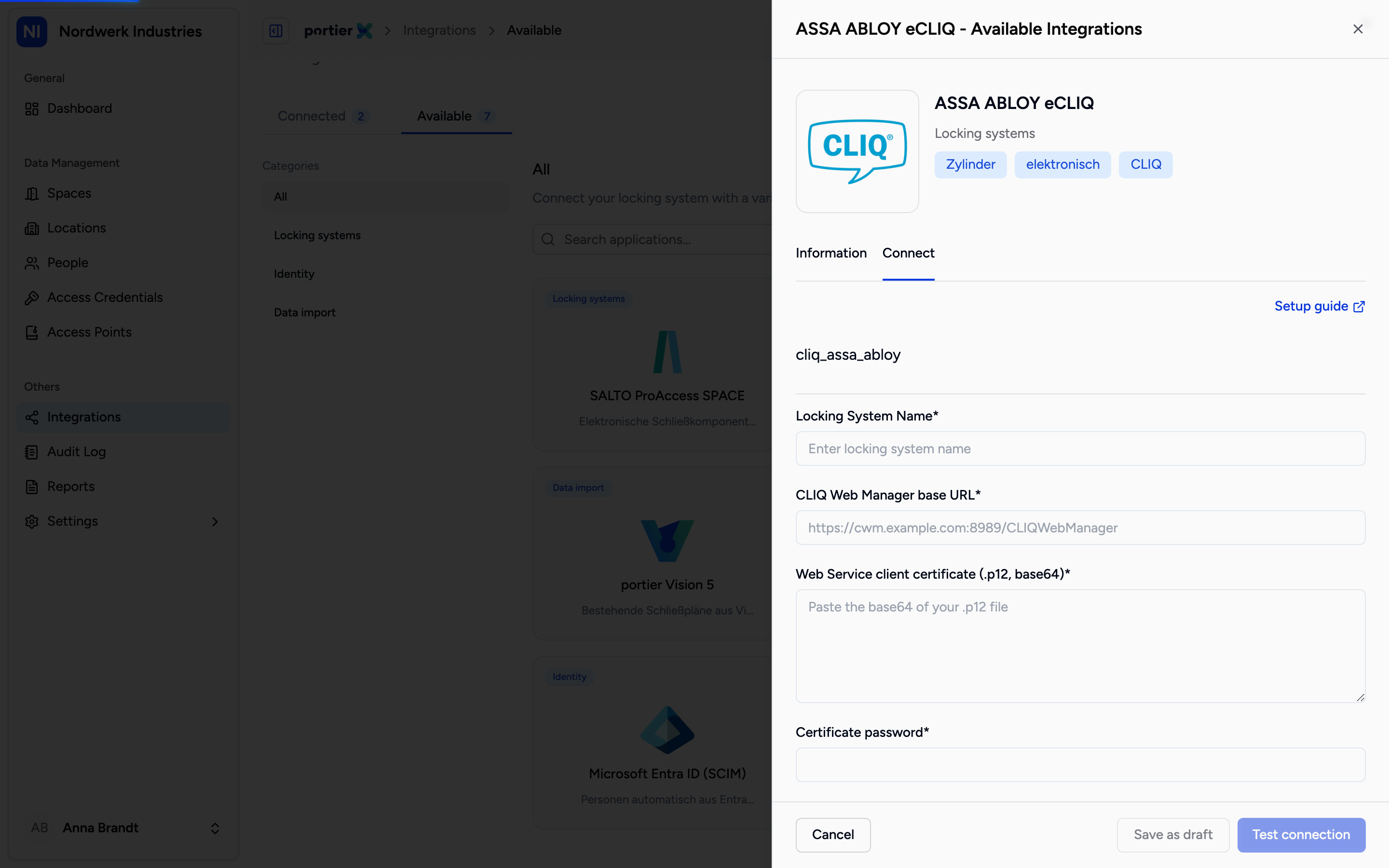
Four required fields and one optional. The certificate is pasted as text, not uploaded as a file.
At the network protection section, eCLIQ differs from the other connections. Public is the only choice. VPN, Cloudflare Access and custom headers are not offered here. Your CLIQ Web Manager therefore has to be reachable over HTTPS, and you narrow access with your firewall.
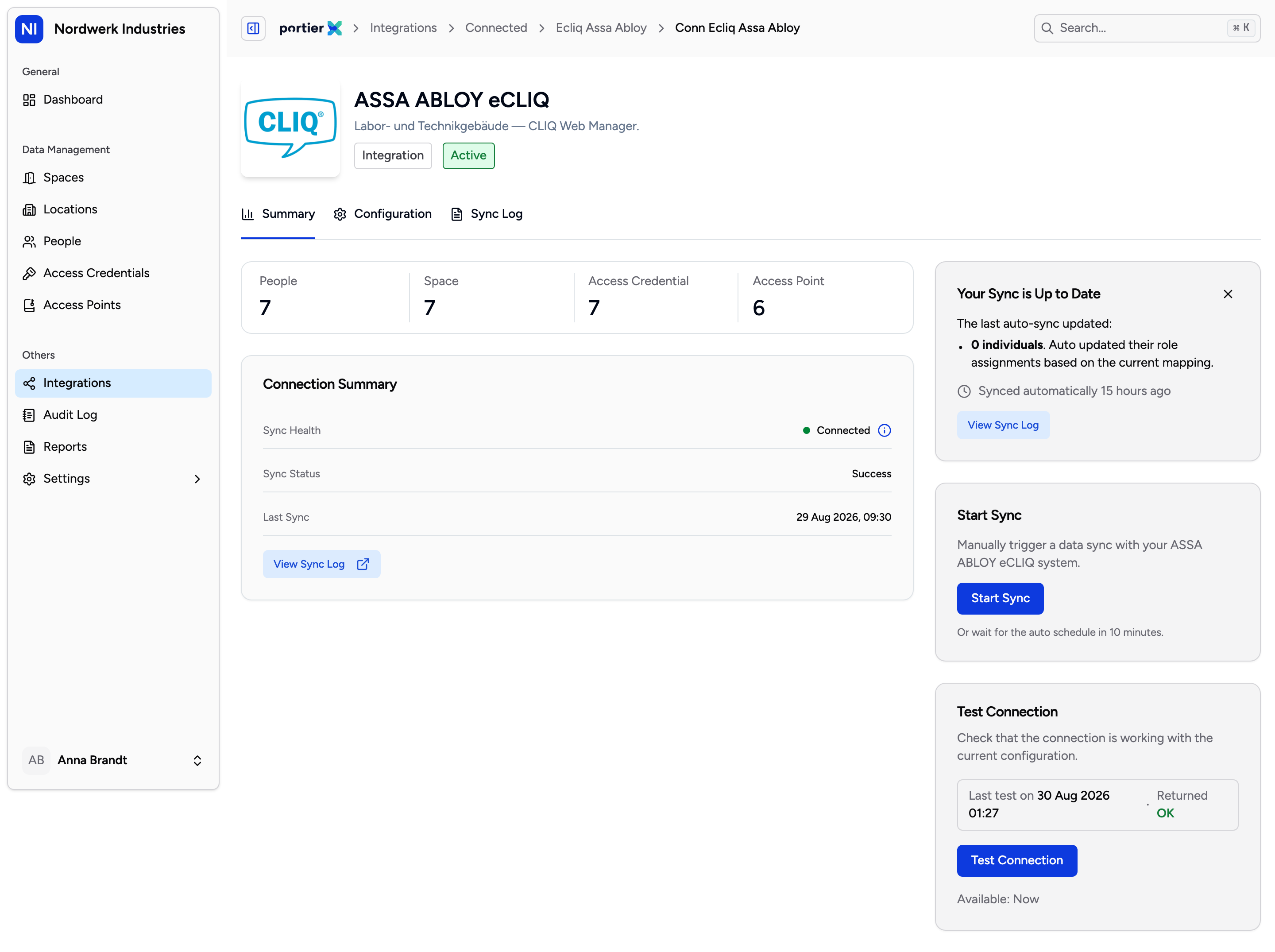
The connection summary. Same shape as the other connections, labels in English.
The connection has three tabs: Summary, Configuration and Sync Log. The tab names are translated; what is inside them is not.
Summary shows state and last sync, alongside the buttons to test and to start a run. How to read that screen is in the article on the connection screen.
Configuration carries two sections that only eCLIQ has.
The first is headed "Security" and exists for changing the certificate. "Update Details" is where you enter a new P12 Certificate, its P12 Certificate Password and, if needed, a CA Certificate (optional). Certificates expire, and this is where you renew them.
The second is Audit history, and it earns its own lines.
The switch is Enable audit history. It is off by default, and the product says so: door-event ingest from the CLIQ Web Manager is off unless you turn it on.
Turned on, door events are collected on each scheduled synchronisation.
Here is the honest limit. portierX has no screen today on which you can look at those events. They are collected and stored. They do not appear in the audit log, which records what happened inside portierX, and there is no list and no export for them.
So do not switch it on expecting to see door openings afterwards. It collects for later.
Test environment, not production.
Public only for network protection. Unlike SALTO and MATRIX, there is no VPN route here.
The certificate is pasted as text, not uploaded. Anyone holding a .p12 file has to base64-encode it first.
No door status. Live door state is SALTO only.
Collected door events cannot be viewed today.
One more thing you will notice in the sync log: when an entry disappears in the CLIQ Web Manager, portierX marks the row Removed in CLIQ Web Manager. That is eCLIQ's own wording for a record deleted on the other side.
