You close out an incident once you know what happened to the key or card. It needs the Organisation Admin or Access Manager role. Closing starts with Resolve on the copy on the key's Copies tab, or with Resolve incident in the menu of the Open incident card in the credential's details panel.
Also called: resolving an incident, closing a report. portierX calls the close-out the resolution of the incident.
The incident must be open (see Report a lost, stolen or damaged key or card). The credential stays blocked until you close it.
For a destroyed copy, have the number of the destruction certificate and the certificate itself as a PDF or an image.
Choose Resolve on the copy, or Resolve incident in the card's menu. The Resolve incident dialog opens. The top names the credential's code, Reported with the type, and Held by with the person, or Unassigned.
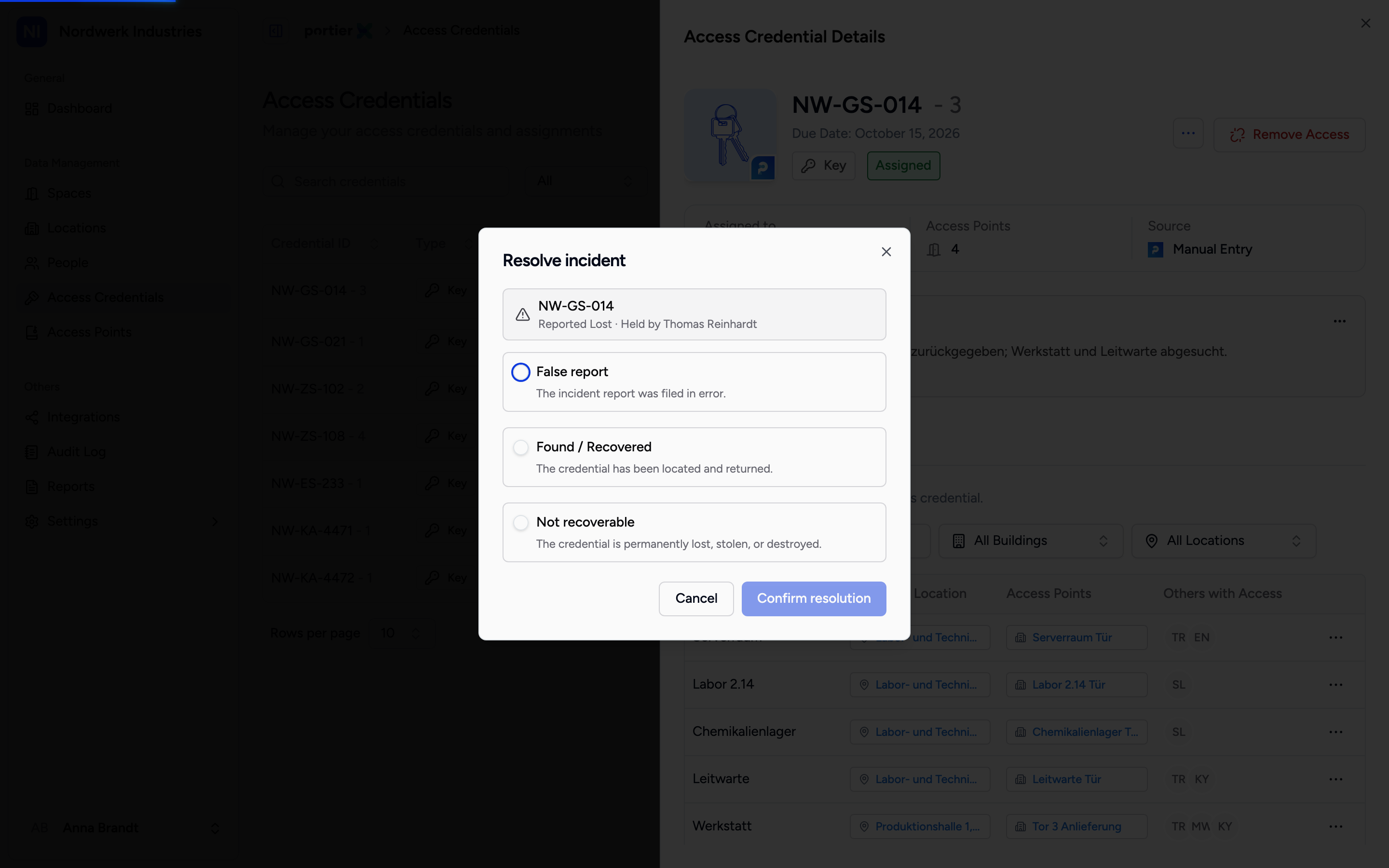
Three outcomes. The middle and the bottom one ask a follow-up, the top one closes straight away.
Choose exactly one of the three outcomes.
False report: the incident was filed in error. portierX asks nothing further. The credential goes back to the state it had before the report, with the same person if the copy was issued.
Found / Recovered: the key has turned up. Under What happens next?, the first line re-assigns the copy to the person who had it and carries their name; Release (mark as available) puts it in stock with no holder. The first line appears only when the copy had a holder.
Not recoverable: the key has gone for good. Under Select outcome, say which of the three it was: Confirmed lost, Confirmed stolen or Destroyed. The hint under Destroyed says what a destruction needs: the certificate number and a proof file. The warning below says what follows: the credential is archived and cannot be used again.
Choose Confirm resolution. For Destroyed the button reads Next and leads to the destruction record.
The second step, Destruction record, Step 2 of 2, asks for three required entries.
Certificate number: the number of the destruction certificate, 100 characters at most.
Destroyed on: the day of the destruction. It defaults to today; a day in the future or before the incident date is refused.
Proof file: the certificate as PDF, PNG, JPEG or WebP, 20 MB at most. Drop the file into the field or choose it; the upload starts at once. Remove file takes it out again.
Choose Confirm resolution. The button becomes available once the file has uploaded and both fields are filled. Back returns to the choice of outcome; your entries are kept.
The Open incident card disappears. After False report, and after Found / Recovered with re-assignment, the copy reads Issued again with the same person; after Release (mark as available) it reads In stock and can be issued.
After Not recoverable the copy reads Archived. It counts in no stock and appears in no picker for assigning. In the details panel, the Archived (terminal record) card replaces the open card, with the outcome as a badge; View details opens Outcome, Archived with date and name, Original report with type and date, Reference and Filed by.
For Destroyed, the proof stays with the copy. View proof in the copy's menu opens it, for the Organisation Admin, Access Manager and Security Monitor roles. The day of destruction counts as the day of archiving.
The Audit Log records the resolution with its outcome, and for a destruction with the certificate number.
Archiving is final. An archived copy cannot be released, assigned or brought back. If the key turns up later, this record does not help.
Confirmed lost and Confirmed stolen lead to the same result. The difference sits in the record, where it separates a mishap from a security incident.
An incident is open or resolved. There is no in-between state; whoever is waiting leaves the incident open.
Re-assignment requires the previous person to be active in your records. Otherwise Release (mark as available) remains.
For Destroyed, Confirm resolution becomes available only once the proof file has finished uploading.
A Credential Manager can report an incident but not resolve it; in their menu Resolve incident is disabled.
Unblocking acts inside portierX. On a mechanical locking system nothing changes at the door.
