A hand-over is pending when the person has the key and their confirmation has not come in. Finishing it needs the Organisation Admin, Access Manager or Credential Manager role. The open hand-overs sit under People on the Handovers tab, and each one is closed on the person's page.
Also called: handover, issuing. portierX calls the process a hand-over; its record is a document with a Document ID.
Under People, on the Handovers tab, one row per person sits in four sections. To hand over: the person has not received the key, and Hand over starts the hand-over. Waiting for approval: a request must be approved first. Awaiting confirmation: handed over or posted, the person's confirmation is missing; Manage opens the hand-over on the person's page. Blocked: no copy left in the cabinet, and Order a key is the way on. Search by name searches every page. The count on the tab counts what sits with you, to hand over and blocked, not the rows waiting on the person.
On the person's page, under Assigned Access Credentials, the section Reserved Access Credentials lists the open documents with Document ID, Credential, Created Date and Status. Show History opens Credential Handover History with every document of the person, Pending, Confirmed or Cancelled; the All Status filter narrows it, and search runs on the document number.
The menu of an open row offers Confirm with PIN/PDF, Confirm Offline, Generate PDF and Cancel Assignment. A posted key also carries View dispatch, and a key that has not reached the person only Hand over. A settled row offers View.
In the row's menu, choose Confirm with PIN/PDF. The Confirm with PIN/PDF dialog opens on the Confirm with PIN tab. The person was emailed the PIN.
Ask the person for the PIN and enter it under Enter 6-digit PIN.
Choose Verify Now.
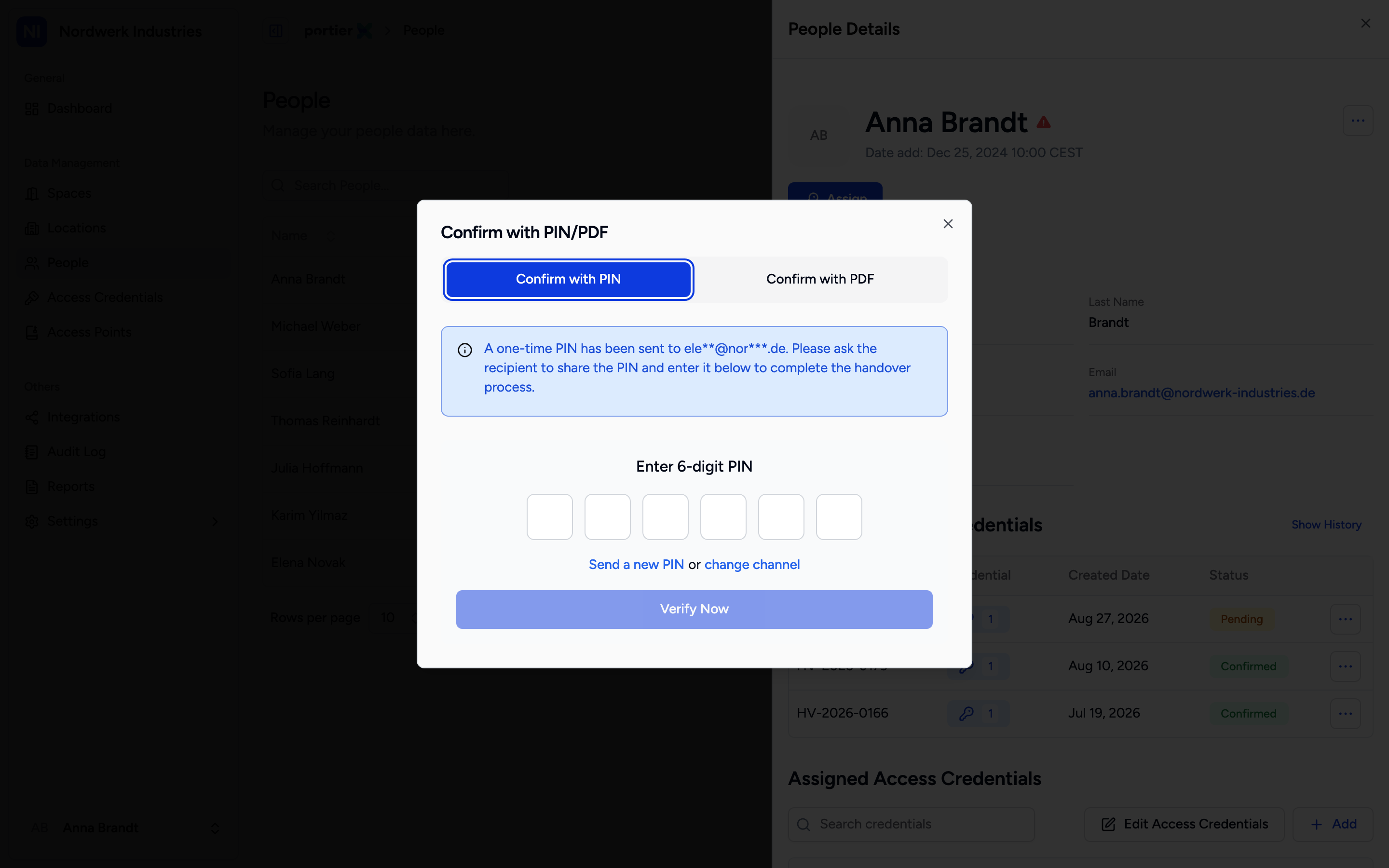
Confirm with PIN/PDF. If the PIN never arrived, send another rather than waiting on the first.
If no PIN arrives, choose Send a new PIN. Through change channel you pick Via Email with the address from the person's record and send with Send PIN; Back returns to the entry. portierX waits briefly between two sends.
Print the hand-over form with Generate PDF in the row's menu and have it signed.
Choose Confirm with PIN/PDF and the Confirm with PDF tab. Under Upload Signed Document, pick the signed file with Choose File or drag it in, PDF only, 10 MB at most.
Tick that the document is correct and signed by both parties, then choose Verify Now.
The same upload sits in the hand-over proof under Uploaded Document, through Choose file (optional). If the document already carries a file, the upload replaces it.
Choose Confirm Offline. Confirm Manually (Offline Proof) shows Assignee, Document ID, Credential, Created Date and Status to read back.
Tick that a signed paper hand-over form exists and is stored securely.
Choose Confirm Offline. Go Back cancels.
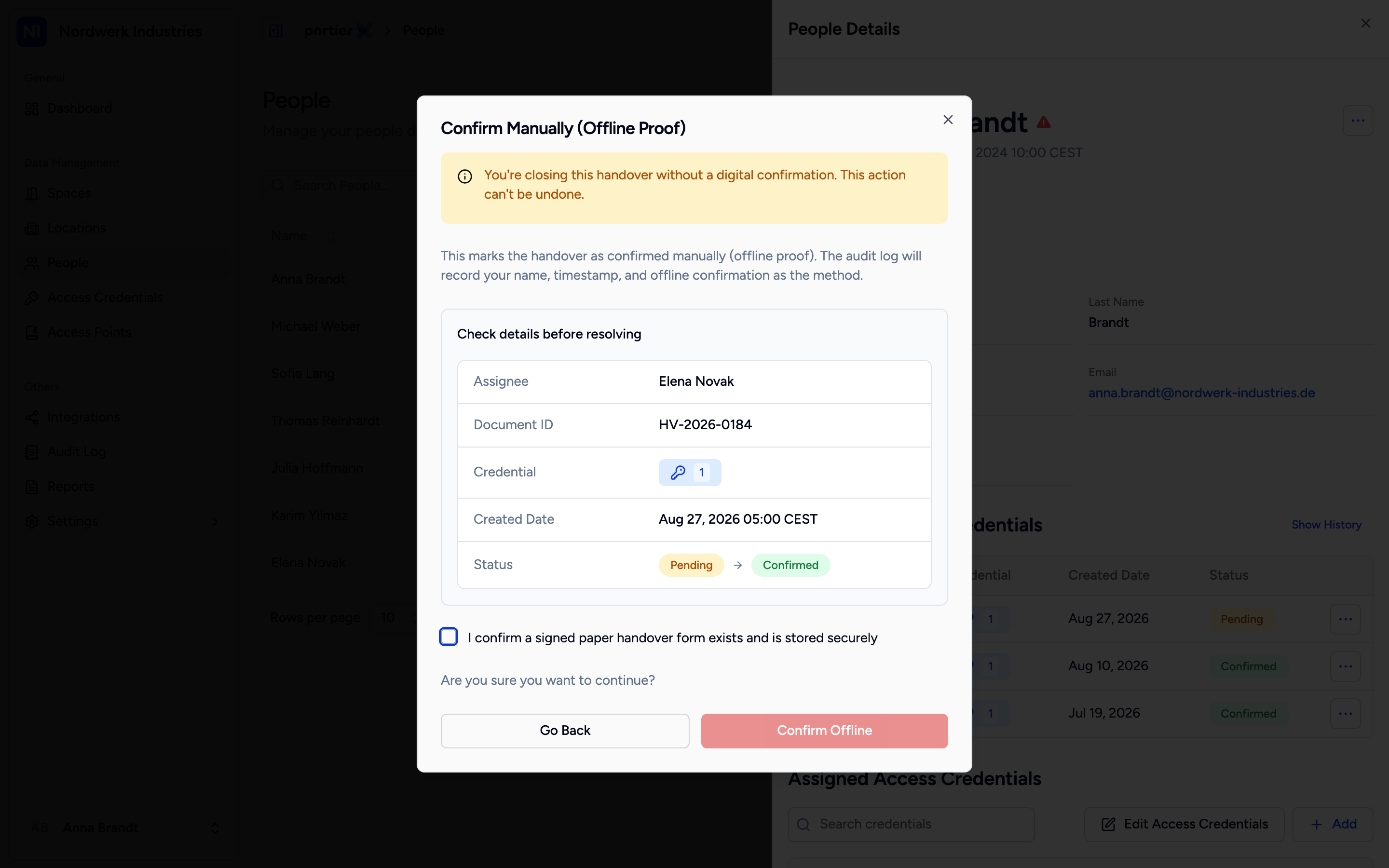
Confirm Manually (Offline Proof). The tick is your statement about a piece of paper in your keeping, not about one in portierX.
The audit log keeps your name, the time and offline confirmation as the method. Anyone reading the record later sees your declaration, not the person's confirmation.
Choose Cancel Assignment. The Cancel Assignment dialog says what follows: the credential is unlinked from the person, the record leaves the list, and the cancellation stays recorded.
Choose Cancel Assignment. Go Back leaves the hand-over open.
For a pending hand-over, Send a new PIN on the Confirm with PIN tab is the way: the PIN email goes to the person again. For a confirmed hand-over, the proof carries Resend email next to Confirmation Date; Resend Handover Confirmation shows the Recipient Email, and Send Confirmation Email sends the confirmation with the list of credentials once more. The email is a notification; the record is the signed document and the audit trail.
View in the menu of a settled row, or a click on the row, opens Handover Proof Details.
Document ID, Assignment Date and Confirmation Date, or Cancellation Date for a cancelled hand-over.
Method: Digital Confirmation (Email), PDF Upload, Offline or Signature. This field separates a hand-over the person confirmed from one declared offline.
Signed Document with Download signed document for a signature on screen; Uploaded Document with Preview Document for an uploaded form.
Assigned by, Assigned to, Total credentials and Comment.
Under Credential Handover, the list with Credential ID, Name and Return Date; View receipt sums up what changed hands and how it was confirmed.
A confirmed hand-over reads Confirmed. The copy moves from Reserved to Issued on the key's Copies tab, and the row leaves the Handovers tab.
A cancelled hand-over reads Cancelled; the copy is free again.
A card issued while assigning is programmed at the locking system with the confirmation.
A hand-over does not lapse. It stays Pending until somebody confirms or cancels it.
The PIN goes by email to the address on the person's record. Without an address no PIN goes out; the signed form or the offline confirmation remain.
An offline confirmation cannot be undone.
A key whose issue needed an approval cannot be confirmed offline.
An upload takes PDF only, up to 10 MB.
A confirmed or cancelled hand-over offers View in its menu and nothing else.
