If you imported a locking plan, your credentials came out of the file. If you did not, you create them by hand. This article covers the second case.
There are two ways to do it and they follow different rules. That is the part that catches people.
Open Access Credentials and Add at the top right. A panel opens headed Add Credential.
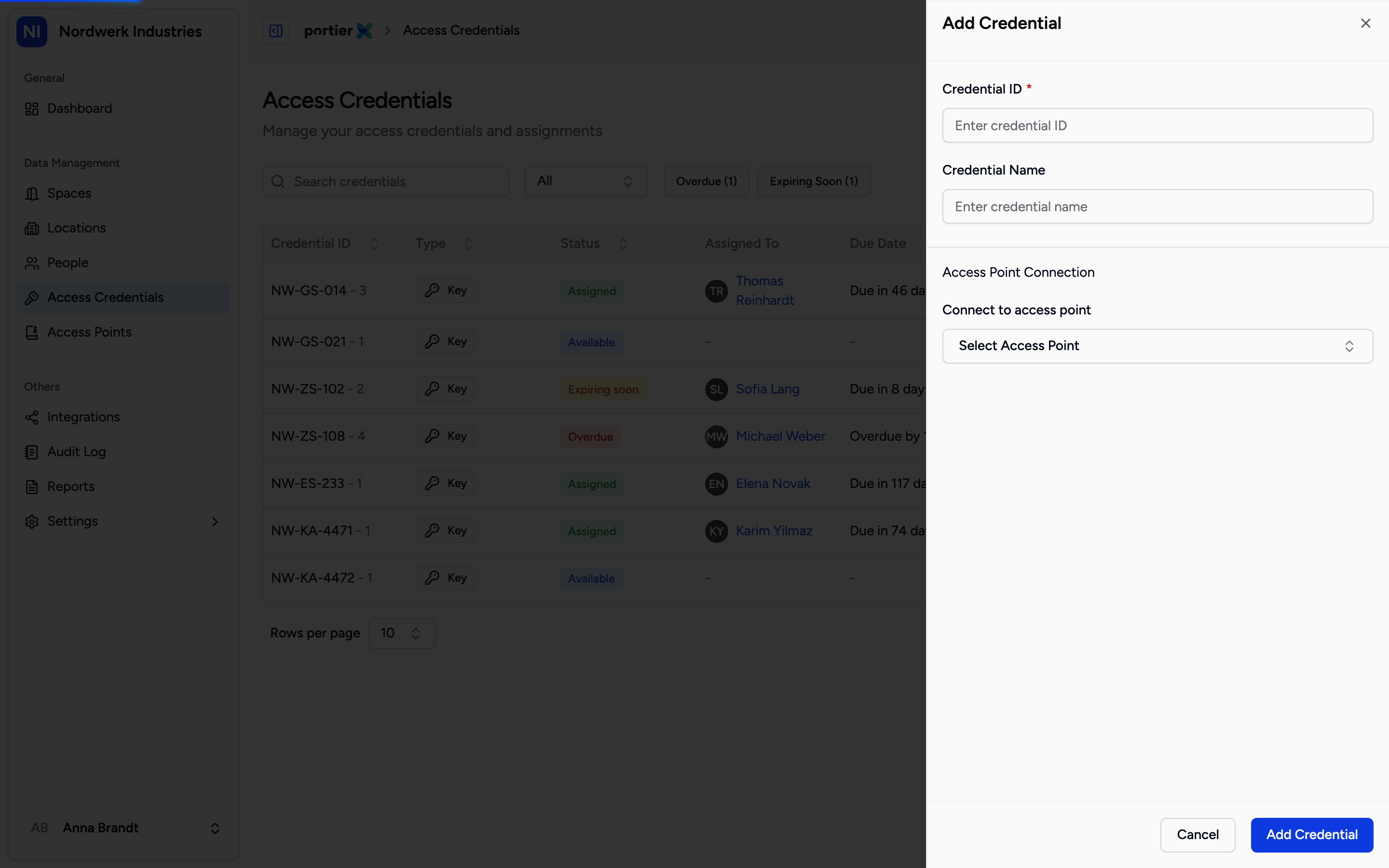
The Credential ID is already filled in when the panel opens. Keep it or type over it.
Credential ID is not empty when it opens. portierX suggests one so you do not have to invent it. Keep the suggestion, or type over it with your own number, the stamping on the key for instance. Required, 24 characters at most.
If the suggestion cannot be fetched, a red notice appears with Retry. It also says you can create the credential manually anyway, and that is true. The suggestion is a convenience, not a prerequisite.
Credential Name is optional, 100 characters at most. A name helps you find it later. A bare ID does not.
Below sits the Access Point Connection section, whose heading stays English in all three languages. Connect to access point is where you choose which doors this key turns in. If the door does not exist yet, Add Access Point creates it here and now. The link is optional at this point and can be added later.
Add Credential at the bottom finishes the job.
While creating or editing an access point, you can create a credential that turns in it right there. The form is headed Create New Access Credential.
Different rules apply here, and this is the line that matters in this article.
Credential ID is not suggested here. The field starts empty and you type something in.
Credential Name is required here, unlike on the first path.
You finish with Create & Connect, or back out with Discard. The link to the access point you are standing on is made for you.
Use this way when you are already creating doors. Use the first when you are creating keys.
If a credential came from a connected locking system, its ID cannot be changed in portierX. The field is locked and carries a note, which reads in English in all three languages. The reason is in it: the ID is the vendor's own identifier, on an eCLIQ key the marking engraved on the key itself, and editing it in portierX would let the two systems drift apart.
The same holds when you duplicate a credential. The ID and the connected access points are locked, and a warning sits at the top, also in English.
A credential you have created is not yet issued to anybody. It exists, it turns in the doors you linked, and it is sitting in the cupboard so to speak. Handing it to a person is the next step and a separate job.
The suggested ID is a suggestion, not a reservation. If you type your own, portierX checks it when you save.
Deleting is final and the dialog says so. Whether an already issued credential can be deleted at all depends on its state, so do not find out at five o'clock on a Friday.
Credentials that came from a locking plan or a connected system belong there. Do not create them by hand as well, or you will be carrying the same key twice.
